MCP for Beginners: The Playbook on Sharing Tools with Any AI App
MCP for beginners, told as a simple story: what servers, clients and tools are, how to connect your first MCP server safely, and what changed in 2026.
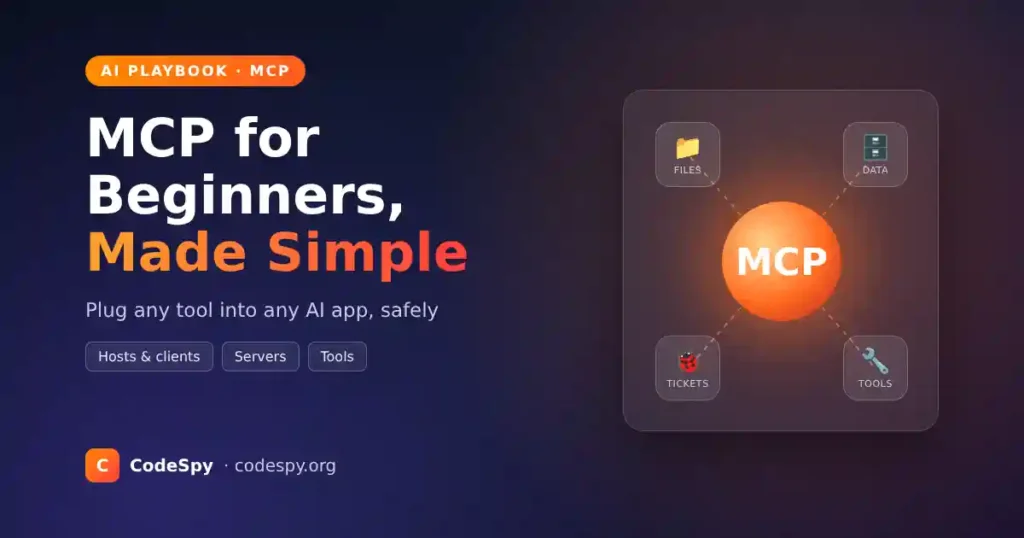
Meera is a developer in Pune. Her team’s AI assistant can already answer questions, and last month she taught it to call one tool: a small function that looks up order status. Now her manager wants more. Read the shared drive. Check the bug tracker. Look at the sales database.
Three new tools, two different AI apps: six pieces of glue code to write and maintain. Then a friend asks: “Why not use MCP?” This chapter, MCP for beginners, is the story of what Meera learned next.
Last verified: 18 November 2026. AI tools change fast; check the linked sources for anything newer.
Who this is for: anyone who has heard “MCP” and wants to know what it is, how it fits with tools and agents, and how to connect a first MCP server safely. This MCP for beginners guide needs no coding. Time needed: about 30-40 minutes.
MCP for beginners: what it is, in simple words
MCP stands for Model Context Protocol. A protocol is just an agreed set of rules for how two programs talk, the way everyone agrees that a phone call starts with “hello”. The official site calls MCP “an open-source standard for connecting AI applications to external systems” such as files, databases, search tools and workflows.
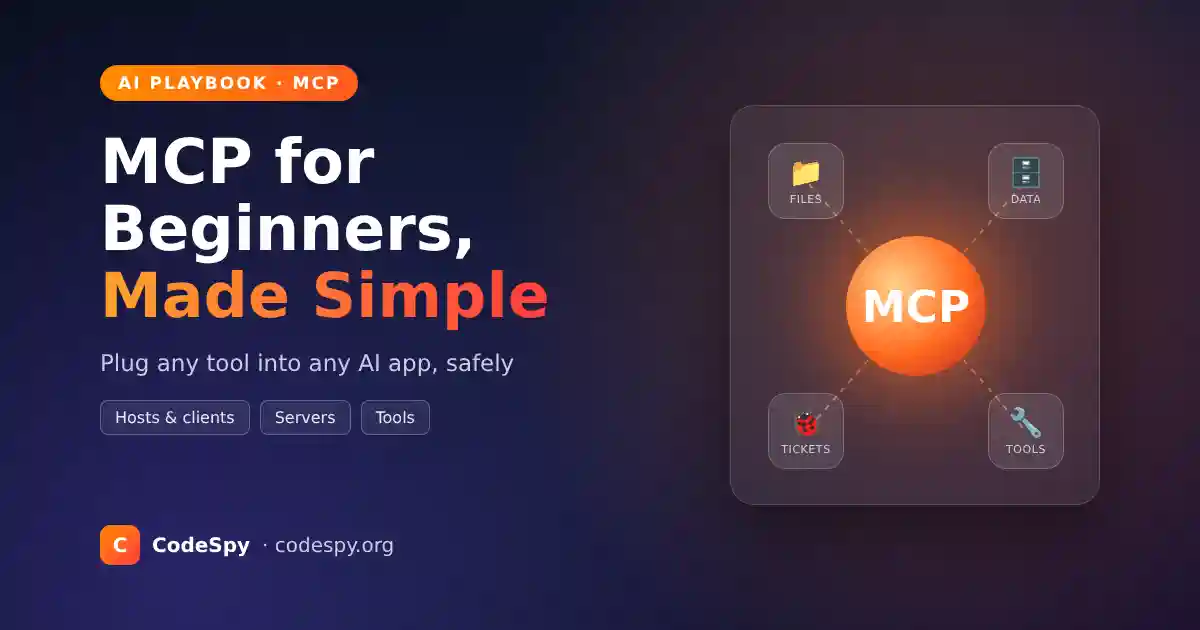
The official analogy is a good one: MCP is like a USB-C port for AI apps. Before USB-C, every phone had its own charger. Now one cable fits many devices. MCP does the same for AI: a tool is wrapped once as an MCP server, and any AI app that speaks MCP can plug into it.
In one precise sentence: MCP is a shared message format (built on JSON-RPC 2.0) that lets an AI app discover what an outside program offers and then use it. Apps such as Claude, ChatGPT, Visual Studio Code and Cursor support it, according to the official introduction.
How MCP relates to function calling
If you read our function calling playbook, you already know the core idea: the model asks for a tool, your code runs it, and the answer goes back to the model. MCP does not replace that. It standardises the plumbing, so tools can be shared between apps instead of rebuilt inside each one.
What’s new in MCP (2026)
The current version of the specification is dated 2026-07-28. According to the official architecture guide, it makes MCP stateless: every request carries everything the server needs, so a server does not have to remember earlier messages. It also adds a server/discover request so an app can ask a server what it supports in one go.
Two older client features, roots and sampling, are now deprecated. For a beginner the big picture stays the same: servers offer tools, resources and prompts, and apps connect to them.
The playbook at a glance
Here is the whole MCP for beginners path in six plays. Each one takes a few minutes.
- Play 1: Pick one job that needs an outside system.
- Play 2: Learn the three roles: host, client and server.
- Play 3: Read the server’s menu: tools, resources and prompts.
- Play 4: Connect one existing MCP server.
- Play 5: Keep it safe with small permissions and approvals.
- Play 6: Test it, watch it, then add the next server.
Play 1: Pick one job that needs an outside system
Goal: start with a real need. The first rule of MCP for beginners: one job, not “MCP everywhere”.
- Write down one question your AI cannot answer today because the data lives somewhere else.
- Name the system that holds the answer: a folder, a database, a ticket tracker.
- Ask whether more than one AI app needs the same access. If yes, MCP saves the most work.
Meera picks one job: “Answer questions using the team’s product docs folder.” Both of her team’s AI apps need it, so it is a good first step.
You are done when: you can say in one sentence which system your AI should reach and why.
Play 2: Learn the three roles: host, client and server
Goal: understand who does what. This is the part of MCP for beginners that makes everything else click.
Think of a hotel. The host is the hotel itself: the AI app you use, such as a chat app or a code editor. For every outside service it uses, the hotel gives one client, like a dedicated concierge, the job of talking to it. The server is the outside service: the taxi company or the restaurant.
- MCP host: the AI app that manages one or more connections.
- MCP client: the part inside the host that keeps one connection to one server.
- MCP server: a program that offers tools and data to clients.
Servers come in two kinds. A local server runs on your own computer and talks through standard input and output (called stdio). A remote server runs on the internet and talks over HTTP, usually with a login such as OAuth.
Meera’s docs folder is on her laptop, so she needs a local server. The bug tracker will be a remote one.
You are done when: you can point at your AI app and say “that is the host”, and name the server you want it to use.
Play 3: Read the server’s menu: tools, resources and prompts
Goal: know what a server can offer before you connect it.
A server is like a restaurant with a three-part menu. The official docs call these the three core primitives (basic building blocks):
- Tools: actions the AI can run, such as “search files” or “create ticket”. These are the dishes the kitchen cooks for you.
- Resources: data the AI can read, such as a file’s contents or a database schema. These are the things on display you can look at.
- Prompts: ready-made templates that help you ask well, such as “summarise this bug report”. These are the chef’s set meals.
Apps find out what is on the menu by asking the server for a list (for example tools/list), then run an item by name (tools/call). Each tool comes with a name, a description and an input schema: a small form listing the details it needs.
Meera reads the docs-folder server’s menu: tools to list, read and search files. Nothing that deletes. Good.
You are done when: you can list the tools a server offers and say which ones can change things.
Play 4: Connect one existing MCP server
Goal: get one real connection working without writing a server yourself. This is the most hands-on step in MCP for beginners.
- Find “MCP” or “connectors” in your AI app’s settings.
- Choose a well-known server. The official project keeps reference servers, including a filesystem server.
- Add the server’s settings: how to start it (local) or its web address (remote).
- Give it the smallest access possible, for example one folder, not your whole disk.
- Restart the app and check that the server’s tools appear.
Many desktop apps use a small settings file like this one. It is an illustration: file names and formats differ between apps, so follow your app’s docs.
{
  "mcpServers": {
    "product-docs": {
      "command": "npx",
      "args": [
        "-y",
        "@modelcontextprotocol/server-filesystem",
        "/home/meera/product-docs"
      ]
    }
  }
}
In plain steps: “Start a server called product-docs by running the filesystem server, and let it see only the product-docs folder.” The host starts it, a client connects, and its tools appear in the chat.
Meera adds the entry, restarts the app and asks: “What does our refund guide say about damaged items?” The assistant searches the folder and quotes the right page.
You are done when: your AI app shows the server’s tools and answers one question using them.
Play 5: Keep it safe with small permissions and approvals
Goal: make sure plugging in a server does not open the door to trouble.
An MCP server is code with real access. Installing one is like giving someone a key to your office: check who they are and which rooms they can open.
- Install servers only from sources you trust, and check who maintains them.
- Give each server the narrowest access: one folder, read-only database users, limited API scopes.
- Keep human approval switched on for tools that write, send or delete.
- Remember that text coming back from a server can contain hidden instructions. Our prompt injection playbook shows how to defend against this.
Meera keeps the docs server read-only and leaves “ask before running tools” on. When she later adds the bug tracker, she gives it a token that can read tickets but not close them.
You are done when: every connected server has the least access it needs, and risky tools ask before they run.
Play 6: Test it, watch it, then add the next server
Goal: trust the setup because you checked it.
- Write five real questions your users will ask, plus one that should be refused. Meera’s all pass, and the refused one is refused.
- Run them and check which tool was called and whether the answer is right.
- Use the official MCP Inspector developer tool to see a server’s tools and try calls by hand.
- Watch how many tools are loaded. Too many tools crowd the model’s context, as our context engineering playbook explains.
- Only when the first server is solid, add the next one.
You are done when: your test questions pass and you could explain any tool call you see in the logs.
Do you need MCP?
A common question in MCP for beginners guides is whether MCP is needed at all. Often it is not.
| Situation | Best choice | Why |
|---|---|---|
| One app, one or two simple tools | Plain function calling | Least setup; MCP adds little |
| Several AI apps need the same tools | MCP server | Build once, plug into each app |
| You want ready-made access to popular services | Existing MCP servers | Someone else maintains the glue code |
| You offer a product other people’s AI should use | Remote MCP server | Any MCP-capable app can connect |
Mistakes to avoid
Most problems in MCP for beginners setups come from doing too much too soon.
- Connecting ten servers on day one. Fix: start with one job and one server, then grow.
- Giving full disk or admin access. Fix: point the server at one folder or a read-only account.
- Thinking MCP makes the model smarter. Fix: MCP only delivers tools and data; good prompts and tests still matter.
- Installing unknown servers. Fix: use official or well-known servers and read what each tool does.
- Turning off approvals to save clicks. Fix: keep approval on for anything that writes, sends or deletes.
How to know it is working
- The server’s tools appear in your AI app after a restart.
- Answers now include facts that only the connected system knows.
- Logs show the right tool called with sensible inputs.
- Risky actions stop and ask you first.
Your checklist
Use this MCP for beginners checklist before you add a second server.
- ☐ I picked one job that needs an outside system.
- ☐ I can name the host, the client and the server.
- ☐ I read the server’s tools, resources and prompts.
- ☐ I connected one trusted server with the smallest access.
- ☐ Approvals are on for tools that change things.
- ☐ My test questions pass before I add another server.
Frequently asked questions
What is MCP in AI, in one line?
MCP, the Model Context Protocol, is an open standard that lets AI apps connect to outside tools and data in one shared way. Think of it as a USB-C port for AI applications.
Is MCP the same as an API?
Not quite. An API is one service’s own way of being called. MCP is a common wrapper, so an AI app can discover and use many services the same way.
Do I need to code to use MCP?
No. Using an existing server usually means adding a few settings in your AI app. Building your own server needs some code, with official SDKs in several languages.
Is MCP safe?
It is as safe as the servers you connect and the access you give them. Use trusted servers, small permissions and human approval for risky actions.
Meera’s next step, and yours
A week later, both of Meera’s team apps read the docs folder and the bug tracker through the same two servers. No glue code. When her manager asks for the sales database, she smiles: one more server, one more test list. That is MCP for beginners in one week: one job, one server, one test list.
Your next action: connect one trusted MCP server to an AI app you already use, and ask it one real question. When you want to build your own, follow our step-by-step MCP server guide and MCP client guide, or see how servers fit into a bigger picture in the AI agents playbook.
Sources: What is the Model Context Protocol (official introduction); MCP architecture overview, protocol version 2026-07-28.