Model Quantization for Beginners: The Playbook on Running AI on Less Hardware
Model quantization for beginners: learn what 8-bit and 4-bit mean, pick a small model for one job and test it so AI runs on an ordinary laptop.
This is a story about model quantization for beginners. Meera is a developer in Pune. Her team wants a small AI helper that sorts support tickets into five buckets: billing, login, bug, feature request and other. The catch is that the tickets contain customer details, so the helper must run on the office laptop, not in someone else’s cloud.
She downloads a popular open model and it refuses to start. The laptop has 16 GB of memory and the model wants more than that. A colleague says, “Just use the quantized version.” Meera nods, then quietly searches for what that means. This playbook is that answer, told through Meera’s week.
Last verified: 24 November 2026. AI tools change fast; check the linked sources for anything newer.
Who this is for: anyone who wants to run an AI model on a laptop, a small server or a phone and keeps hitting “out of memory”. No maths needed. Time needed: about 30-45 minutes to read and try the first two plays.
Model quantization for beginners: what it is, in simple words
An AI model is mostly a giant list of numbers called weights. They are the “knowledge” the model learned in training. A model with 8 billion weights is called an 8B model.
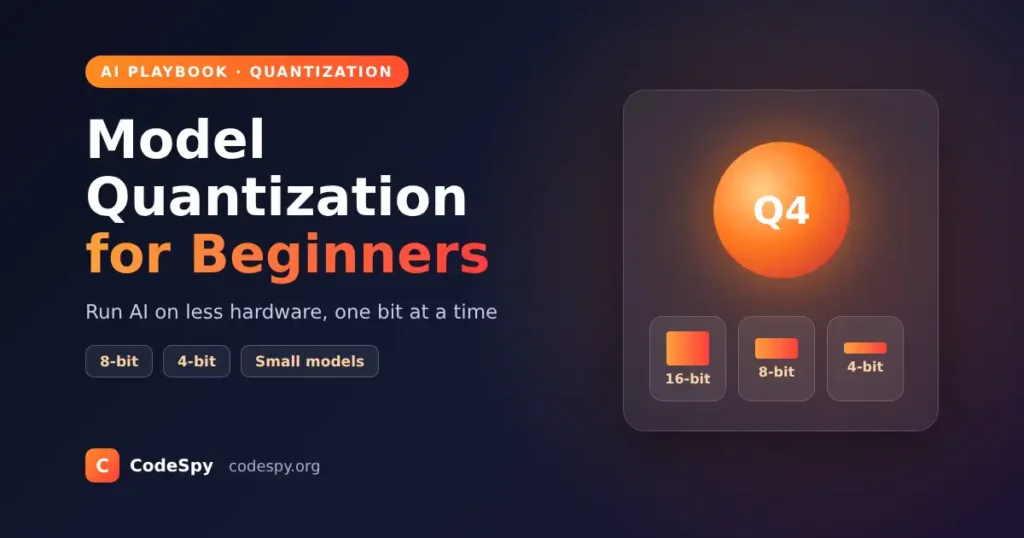
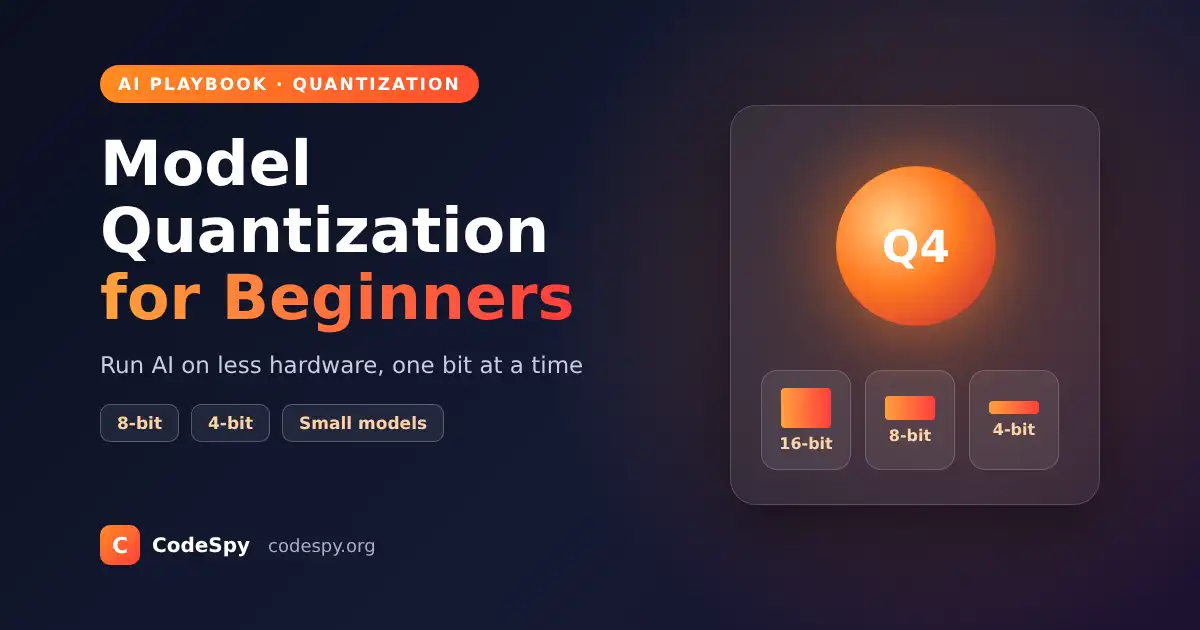
Each weight is normally stored with 16 bits (a bit is a single 0 or 1). Quantization stores each weight with fewer bits, such as 8 or 4. Fewer bits per weight means a smaller file and less memory.
An everyday picture: think of a photo. The original has millions of shades of colour. Save it with fewer shades and the file shrinks a lot, yet you still recognise every face. Save it with far too few shades and it turns blotchy. Quantization does the same to a model’s numbers.
The precise version: quantization lowers the numeric precision of a model’s weights, trading a little accuracy for much lower memory use and often faster answers.
How much smaller does a model get?
The Hugging Face documentation gives a simple rule of thumb. An 8B model needs about 16 GB for its weights at 16 bits, about 8 GB at 8 bits, and about 4-5 GB at 4 bits. That last number is why Meera’s laptop suddenly has a chance.
The llama.cpp project measured real files for Llama 3.1 8B. Here are a few of its common levels:
| Level | Bits per weight | File size |
|---|---|---|
| Q8_0 | 8.5 | 7.95 GiB |
| Q6_K | 6.6 | 6.14 GiB |
| Q5_K_M | 5.7 | 5.33 GiB |
| Q4_K_M | 4.9 | 4.58 GiB |
| Q3_K_M | 4.0 | 3.74 GiB |
| Q2_K | 3.2 | 2.95 GiB |
Read the name like a jar label: the number after Q is roughly the bits per weight. Q8 is “nearly original”, Q4 is “the popular middle” and Q2 is “squeezed hard”.
What is a small model, and how is it different?
A small model has fewer weights to begin with, for example 1B to 8B instead of 70B or more. Quantization shrinks how each weight is stored. You can combine both: a small model, quantized, is how most people run AI on ordinary hardware.
The playbook at a glance
Here is model quantization for beginners in six plays:
- Write down the one job and the hardware you have.
- Do the memory maths before you download anything.
- Pick a small model and a quantization level.
- Run it locally and try real examples.
- Test it against a bigger model with the same questions.
- Choose the smallest version that passes, and write it down.
Play 1: Name the job and the machine
Goal: know exactly what the model must do and where it must run. Small models do well on narrow jobs and poorly on “do everything” jobs.
- Write the job in one sentence, with the allowed answers if possible.
- Write down the memory you have: laptop RAM, or the graphics card’s memory (VRAM) if you have one.
- Write down how fast an answer must be. A ticket sorter can wait two seconds; a chat box should feel instant.
Meera writes: “Sort one ticket into one of five buckets. Laptop with 16 GB RAM, no graphics card. Under five seconds per ticket.”
You are done when: the job, the memory and the speed limit fit on one sticky note.
Play 2: Do the memory maths first
Goal: avoid downloading a 30 GB file that will never fit. The maths is short.
- Take the model size in billions of weights (the “B” number).
- Multiply by the bytes per weight: 2 for 16-bit, 1 for 8-bit, about 0.6 for 4-bit formats like Q4_K_M.
- Add room for the operating system, your other apps and the conversation itself. A safe habit is to keep 25-30% of memory free (illustrative rule, not a law).
Meera’s maths for an 8B model at 4-bit: 8 x 0.6 = about 4.8 GB. That matches the 4.58 GiB file in the table above and leaves plenty of room on 16 GB. At 16-bit it would need about 16 GB on its own, which is why it refused to start.
Longer conversations need extra memory too, because the model keeps notes on everything it has read. Our guide to tokens and the context window explains why.
You are done when: you have a model size and a bit level that fit with room to spare.
Play 3: Pick a small model and a quantization level
Goal: choose a sensible starting point, not the perfect one. You will test it in Play 5.
- Pick an instruction-tuned model (the “chat” or “instruct” version) from a well-known family, in the size from Play 2.
- Look for a ready-made quantized file instead of making your own. Many model pages on Hugging Face offer GGUF files at several levels.
- Start at Q4_K_M. It is the common middle ground. Move up to Q5 or Q8 if quality is weak and memory allows; move down only if you must.
Meera finds an 8B instruct model with a Q4_K_M file of about 4.6 GB and a Q8_0 file of about 8 GB. She downloads both so she can compare them later.
You are done when: you have one or two files whose size you understand.
What GGUF, GPTQ and AWQ mean
These are names you will see on download pages. GGUF is a single-file format used by llama.cpp and tools built on it, such as Ollama. GPTQ and AWQ are other quantization methods, usually loaded through Python libraries such as Hugging Face Transformers on a graphics card. For a laptop, GGUF is the easiest place to start.
Play 4: Run it locally and try real examples
Goal: see the model answer your real questions on your real machine.
- Install a local runner. Our run an LLM locally playbook walks through Ollama step by step.
- Load the quantized model and ask five real questions from your job.
- Note the speed (how long until the full answer) and whether each answer is right.
If no ready-made file exists, llama.cpp can make one in two steps: convert the original model to GGUF, then shrink it. This is the example from its documentation (the file names are just an illustration):
# Step 1 (done once): convert the original model to a GGUF file
# Step 2: shrink it to 4-bit
./build/bin/llama-quantize \
  gemma-4-E2B-it-bf16.gguf \
  gemma-4-E2B-it-Q4_K_M.gguf \
  Q4_K_M
In plain steps: the tool reads the big 16-bit file, rewrites every weight with about 4-5 bits, and saves a new, smaller file. The original stays untouched, so you can always try another level.
Meera pastes five old tickets. The 4-bit model answers each in about two seconds, and four out of five are right.
You are done when: the model runs without memory errors and you have noted speed and correctness for five examples.
Play 5: Test it against a bigger model
Goal: find out how much quality you really gave up. “It looked fine” is not a test.
- Collect 30-50 real examples with the correct answer written next to each. Our AI evals playbook shows how to build this test set.
- Run the same examples through three versions: your 4-bit model, the same model at 8-bit, and one larger or hosted model as a reference.
- Count the right answers for each and look closely at the ones the small model gets wrong.
Meera’s illustrative results on 40 tickets: the large hosted model gets 38 right, the 8-bit model 37 and the 4-bit model 36. Two of the 4-bit misses are tickets that mention both billing and login, which humans also argue about.
You are done when: you have one score per version on the same test set.
Play 6: Choose the smallest version that passes
Goal: make a decision you can explain and repeat.
- Set the pass mark before you look at the scores, for example “at least 35 out of 40”.
- Pick the smallest model and lowest bit level that clears it and meets your speed limit.
- Write down the model name, the exact file, the score and the date, so you can re-run the test when a new model appears.
Meera’s pass mark was 35. The 4-bit file passes with 36, runs in about two seconds and leaves half the laptop’s memory free. She picks it and keeps the 8-bit file as a backup. For a wider view of the same decision, see how to choose an AI model.
You are done when: one line in your notes says which file you use and why.
Do you need quantization?
| Option | Good for | Trade-off |
|---|---|---|
| Hosted API (no quantization needed) | Hard, open-ended tasks; no hardware to manage | Data leaves your machine; pay per use |
| Small model, 8-bit | Quality close to the original on modest hardware | Needs about 1 GB per billion weights |
| Small model, 4-bit (Q4_K_M) | Laptops and small servers; the usual starting point | Small quality drop; test it |
| Small model, 2-3 bit | Very tight memory, such as old laptops or phones | Quality can drop sharply; test carefully |
Mistakes to avoid
- Downloading before doing the maths. Fix: spend one minute on Play 2 and save yourself a 30 GB download.
- Jumping straight to 2-bit. Fix: start at Q4_K_M and go lower only if memory forces you, then re-test.
- Judging quality on three questions. Fix: use a test set of 30-50 real examples with known answers.
- Forgetting the conversation needs memory. Fix: leave room for long prompts, not just the model file.
- Asking a small model to do everything. Fix: give it one narrow job, and send the hard cases to a larger model.
How to know it is working
- The model loads and answers without memory errors, even with a long prompt.
- Its score on your test set is within a point or two of the 8-bit or larger model.
- Answers arrive inside your speed limit on the real machine, not just on your fast one.
- Your notes say which file, which score and which date, so anyone can repeat the test.
Your checklist
- ☐ One-sentence job, memory and speed limit written down
- ☐ Memory maths done for the chosen size and bit level
- ☐ Started with a ready-made Q4_K_M (or similar) file
- ☐ Five real examples tried locally
- ☐ 30-50 example test run against an 8-bit and a larger model
- ☐ Smallest passing version chosen and recorded
Frequently asked questions
Does quantization make a model less accurate?
Usually a little. At 8-bit the difference is often hard to notice, and 4-bit is a popular middle ground. Very low levels such as 2-bit can lose a lot, so always test on your own examples.
Is 4-bit or 8-bit better?
8-bit keeps more quality and uses about twice the memory of 4-bit. If both fit and both pass your test, pick the faster one. If only 4-bit fits, it is a fine place to start.
Can I quantize a model myself?
Yes. llama.cpp converts a model to GGUF and then shrinks it with its quantize tool, and Hugging Face Transformers can quantize some models while loading them. For a first try, a ready-made file is simpler.
Does quantization make a model faster?
Often, because there is less data to move around. In llama.cpp’s own measurements on an 8B model, the 4-bit file generated text faster than the 8-bit one. Speed still depends on your hardware.
Back to Meera’s laptop
By Friday, Meera’s ticket sorter runs on the office laptop. No customer data leaves the building, each ticket takes about two seconds, and she has a score sheet that proves the small 4-bit model is good enough. The “just use the quantized version” advice finally makes sense.
In the end, model quantization for beginners came down to one sticky note and one test sheet.
Your next step: pick one narrow job, do the memory maths from Play 2 and run a Q4_K_M model with the local LLM playbook. Then keep your costs in check with the LLM cost optimization playbook.
Sources: llama.cpp quantize documentation (two-step process, sizes and speeds for Llama 3.1 8B) and Hugging Face Transformers quantization overview (memory per bit level, methods such as bitsandbytes, GPTQ, AWQ and GGUF).